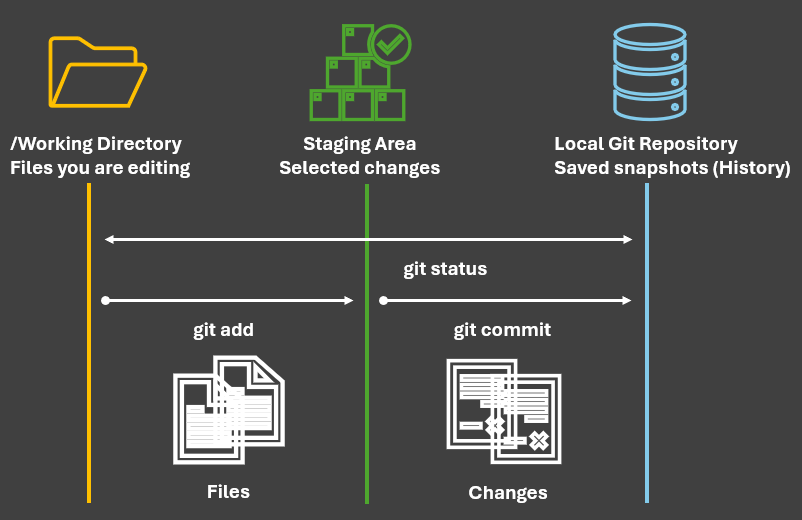
Each project has its own folder and its own Git repository. Git tracks everything inside the project folder.
Git doesn’t create a separate copy of your project somewhere else. It just adds a hidden folder .git that remembers your history.
If you delete the .git folder, you delete the Git history — but your files stay.
Step 1: Open a folder
You can:
Create a folder (e.g., git-workshop)
Either:
Open the terminal inside that folder, or
Navigate to it using the terminal
Both are valid.
Step 2: Start the terminal there
Windows: Right-click folder → Open in Terminal (or Git Bash)
macOS: Right-click folder → New Terminal at Folder
Step 3: Initialize Git
Once the terminal is open in that folder, we initialize Git:
git init
How to check if Git is installed
git--version
If it works:
Git is installed
PATH is fine
Move on immediately
If it does NOT work:
Then (and only then) you troubleshoot installation.
Checking the Status
Before doing anything, always ask Git:
git status
This tells you:
What Git is tracking
What has changed
What is staged vs unstaged
👉 git status is your best friend.
Staging Changes
To tell Git what you want to commit:
git add filename
Or everything:
git add .
Staging = selecting changes intentionally
Making a Commit
To save a snapshot:
git commit -m"Short, clear message"
Good commit messages:
Describe what changed
Explain why (if needed)
Bad: “update”
Good: “Add data cleaning notes”
Viewing History
To see your project’s history:
git log
You’ll see:
Commit messages
Timestamps
A timeline of your work
Why Git Is Useful Even Alone
You don’t need a team to benefit from Git.
Git helps when:
Working on homework
Writing code or reports
Doing research or analysis
Experimenting with ideas
Git is about you + your future self.
What We Are NOT Covering Today
Very important 🚨
We are not covering:
GitHub or Bitbucket
Branches or merges
Collaboration workflows
Conflict resolution
IDE buttons (RStudio / VS Code)
👉 These come later.
Common Beginner Mistakes
Waiting too long to commit
Writing unclear commit messages
Forgetting to check git status
Being afraid to “break” something
You cannot break Git
Git does not delete your files when you make a mistake
Git does not send anything online
Git records history instead of overwriting it
You can always stop, check, and recover
Good news: Git is designed to protect you — and most mistakes are reversible.
Best Practices (Start Simple)
Commit early and often
Use meaningful messages
Keep commits small
Don’t panic — Git remembers
What Comes Next
In a future workshop:
GitHub & Bitbucket
Collaboration
Branches & pull requests
Real team workflows
Today’s goal:
Confidence, not mastery
Final Takeaways
Git is a tool for thinking, not just coding
You now know the core Git workflow
You are ready to practice on your own projects
Thank you for participating!
Please do not hesitate to contact me (Tessa Chen) at ychen4@udayton.edu for questions or further discussions.
AI Acknowledgment: This presentation was prepared with the assistance of AI-based tools for drafting, editing, and formatting support. All content and interpretations are the author’s own.